On a MacBook Pro (M3 Pro, 36GB unified memory) running macOS 27.0.1, Apple Intelligence turned out to take up 19.33GB. That is 5.33GB more than the maximum of 14GB that Apple’s support document lists for a Mac with this configuration.
The figure doesn’t appear as its own line in the storage list — it is folded into the macOS entry. If your free space suddenly dropped after the update, this is a good place to start looking.
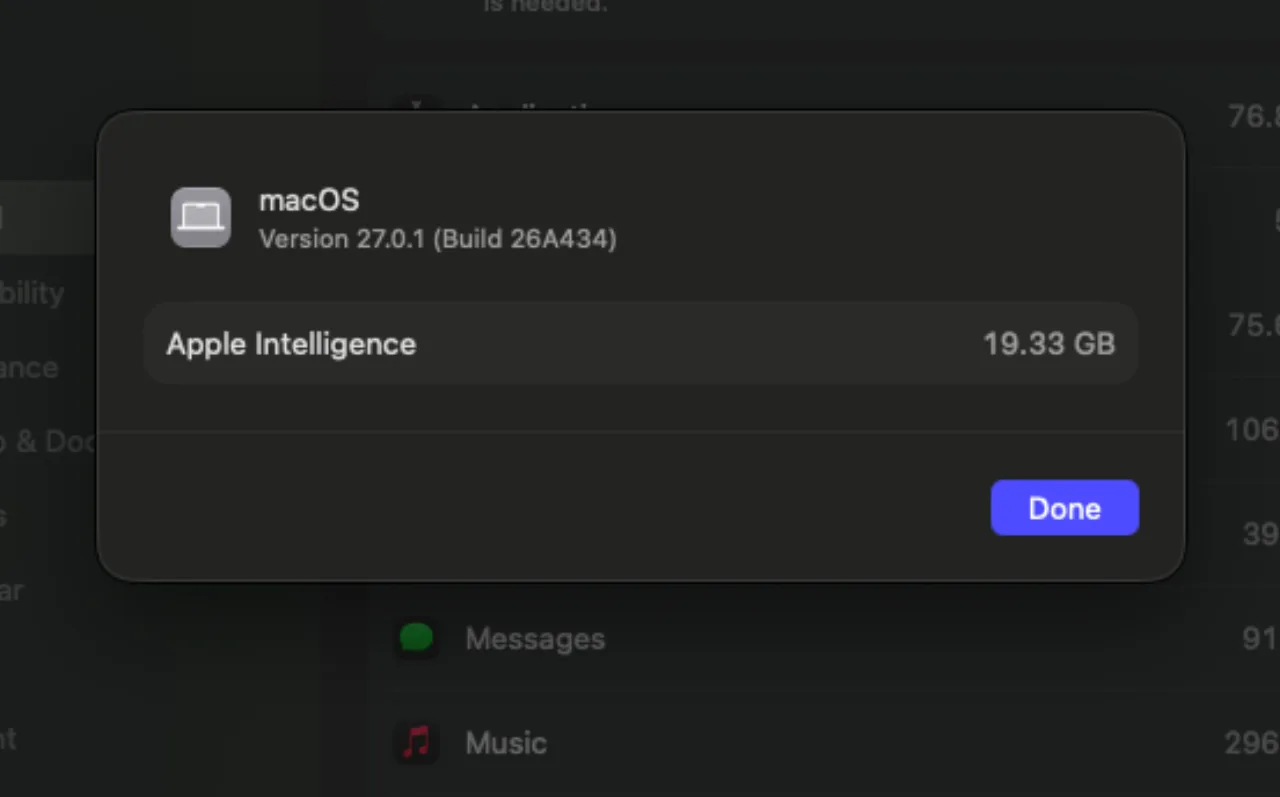 Apple Intelligence shown as 19.33GB in the macOS info window — Source: own screenshot (macOS 27.0.1)
How to check the size
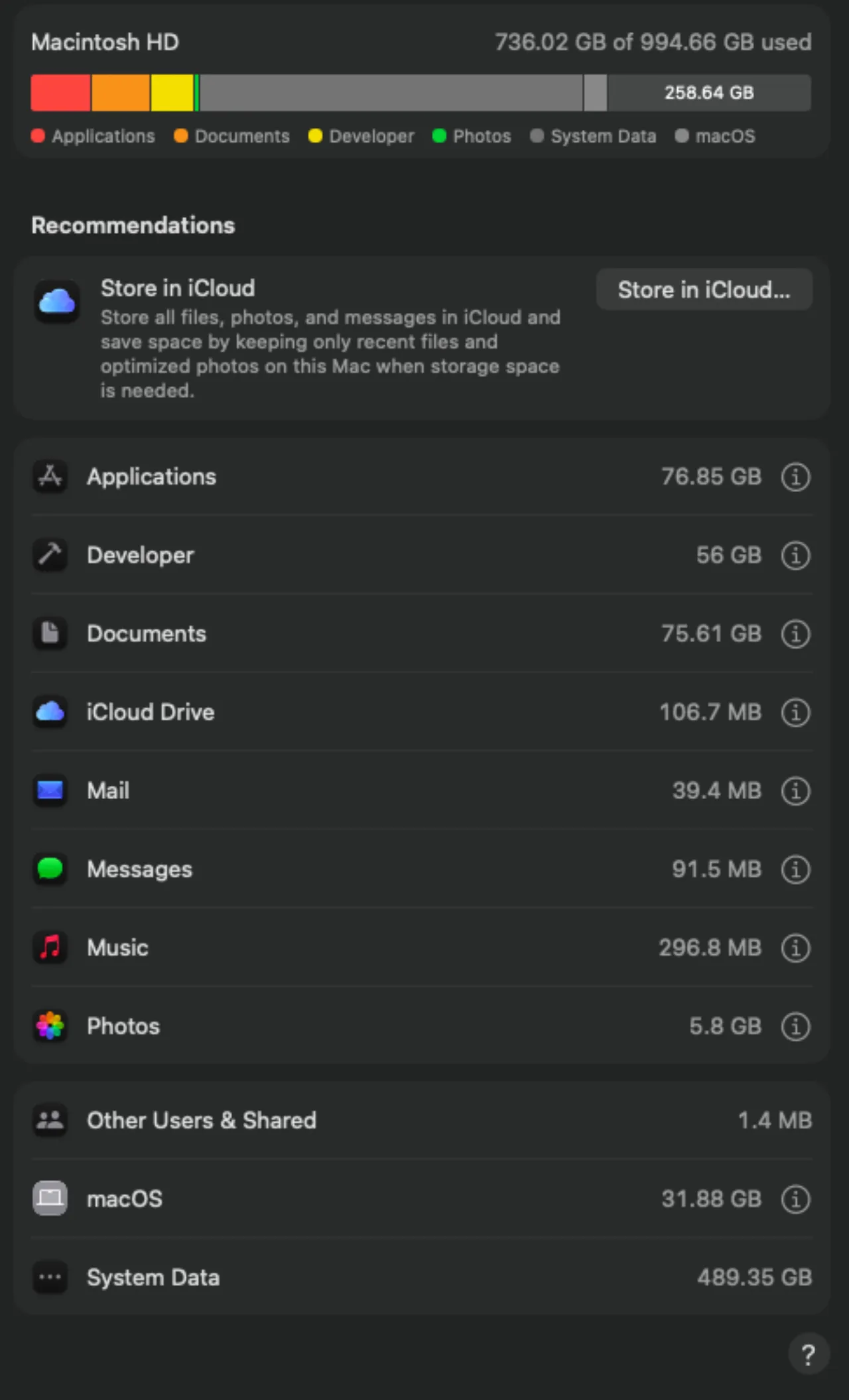 Storage screen in macOS 27 System Settings — Source: own screenshot (macOS 27.0.1)
The Storage list only shows items like Applications, Documents, and Photos — there is no Apple Intelligence row.
① System Settings > General > Storage ② The ⓘ button to the right of the macOS row near the bottom of the list ③ The Apple Intelligence item in the window that opens
On the Mac I measured, the macOS item was 31.88GB, of which 19.33GB was Apple Intelligence. In other words, 60% of the macOS item was Apple Intelligence models.
On a 256GB Mac, 19.33GB is 7.6% of total capacity. On 512GB it is 3.8% and less noticeable, but a Mac that was already tight on space right after the update can get a low-storage warning because of this difference.
Official figures vs. measured
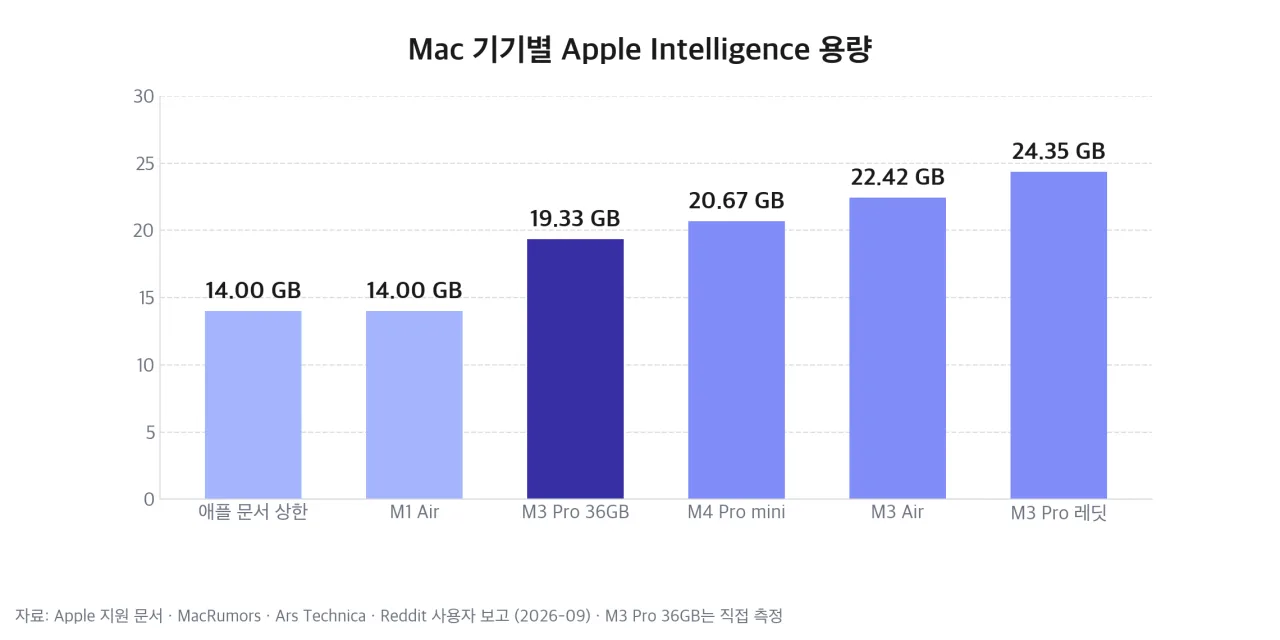 Chart comparing Apple Intelligence size across Macs — Source: self-rendered from Apple, MacRumors, and Ars Technica reports plus own measurement
Apple’s support document says Macs with M3 or later and 12GB or more of unified memory need up to 14GB, and other Apple Intelligence–capable Macs need up to 8GB.
| Mac | Size (GB) | Measured by |
|---|---|---|
| M1 MacBook Air | about 14 | Ars Technica |
| M3 Pro MacBook Pro 36GB | 19.33 | Own measurement |
| M4 Pro Mac mini | 20.67 | MacRumors |
| M3 MacBook Air | 22.42 | Ars Technica |
| M3 Pro MacBook Pro | 24.35 | Reddit user |
| Unknown model (RC build) | 30.16 | Reddit user |
Even two M3 Pro MacBook Pros differed by 5GB, at 19.33GB and 24.35GB. The set of downloaded models seems to vary by machine, and Apple hasn’t explained the difference.
Where the model files live
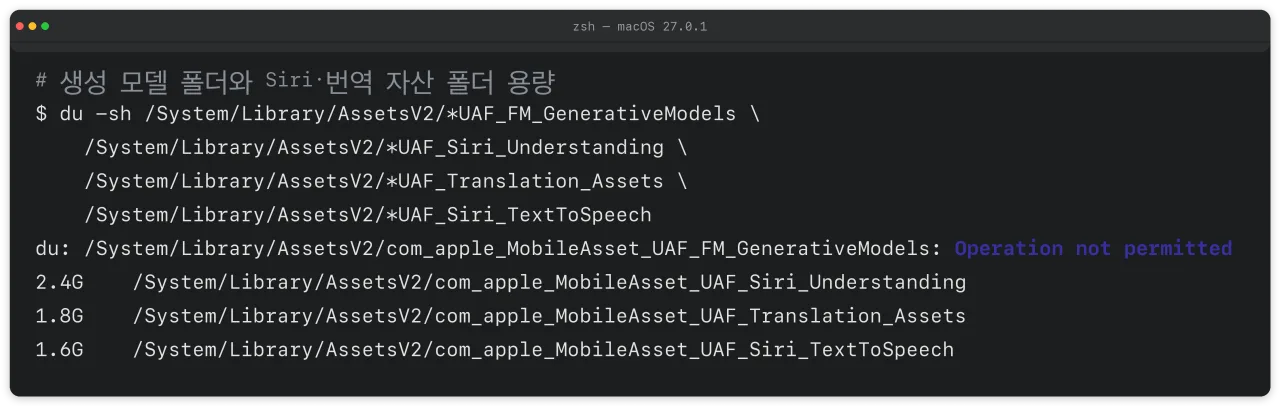 Terminal measuring model folder sizes with du — Source: own run (macOS 27.0.1)
Apple Intelligence models and its speech and translation assets live in folders starting with com_apple_MobileAsset_UAF under /System/Library/AssetsV2. I measured these folders from Terminal on the same Mac.
The UAF_FM_GenerativeModels folder, which holds the generative models, couldn’t be sized with normal permissions because of macOS protections. Some folders were readable — Siri language understanding 2.4GB, translation 1.8GB, Siri speech synthesis 1.6GB — but Apple hasn’t said whether these are included in the 19.33GB.
Why the files stay even when it’s off
MacRumors reported that Apple removed the toggle to turn off Apple Intelligence in macOS 27 and iOS 27. As a result, on supported models the model files take up storage regardless.
In iDownloadBlog’s testing during the macOS 27 beta, a Mac with Apple Intelligence disabled re-downloaded the model files over Wi-Fi. Turning the feature off and deleting the files are separate things, so the space can stay taken even if you never use the feature.
Unofficial cleanup methods and their risks
 Concept image of the risk of deleting system files — Source: concept image · self-generated with agy
Apple provides no official button to delete the model files. Overseas outlets have described two methods, both outside official support.
| Method | Effect | Risk |
|---|---|---|
| Set Mac and Siri to different languages | Reported to block model download | Features limited by the Siri language mismatch |
| Delete the folders in Recovery Mode | Frees space temporarily | Downloads again · system damage |
The language method exploits the requirement that Apple Intelligence only works when the Mac and Siri languages match. Korean has been an Apple Intelligence language since macOS 15.4 in late March 2025, so if both the system and Siri are set to Korean, the models get downloaded.
Deleting the system-volume folders in Recovery Mode freed space briefly in iDownloadBlog’s test, but the models started downloading again a minute later and ended up using 14GB or more. Deleting system folders without a backup can lead to failed updates or broken features, so I don’t recommend it.
Realistic options
What you can do within official paths is clean up storage other than Apple Intelligence.
- Apply the cleanup items shown under Recommendations on the Storage screen, such as Store in iCloud
- Use ⓘ on the Documents and Applications items to clear large files and unused apps
- On Macs with a large Developer item, clear Xcode caches and simulators
- If you’re choosing a new Mac, budget around 20GB for Apple Intelligence as system usage when picking capacity
On the Mac I measured, System Data was 489.35GB — 25 times Apple Intelligence. When you’re short on space, checking System Data and the Developer item first will free up far more than focusing on Apple Intelligence alone.
Sources
- [Apple] Use next-generation Apple Intelligence (storage required by device)
- [MacRumors] Apple Intelligence Taking up 30GB+ on Some Macs Running macOS 27 (2026-09-23)
- [MacDailyNews] Apple Intelligence is eating up to 30GB on some Macs after macOS 27 (2026-09-25)
- [iDownloadBlog] How to remove local Apple Intelligence files from Mac (2026-08-04)