Once a new iPhone is activated, the first thing to do is move your data. Tens of thousands of photos, your message history, and even app login state should all come across — and there are three ways to do it, each with different requirements.
On top of that, moving data on a phone used in Korea is not finished by Apple’s procedure alone. KakaoTalk conversations, banking app certificates, mobile IDs, and eSIM lines all go through separate transfer or re-registration steps.
 Concept image of data moving between two iPhones — Source: concept image · self-generated with agy
The three methods
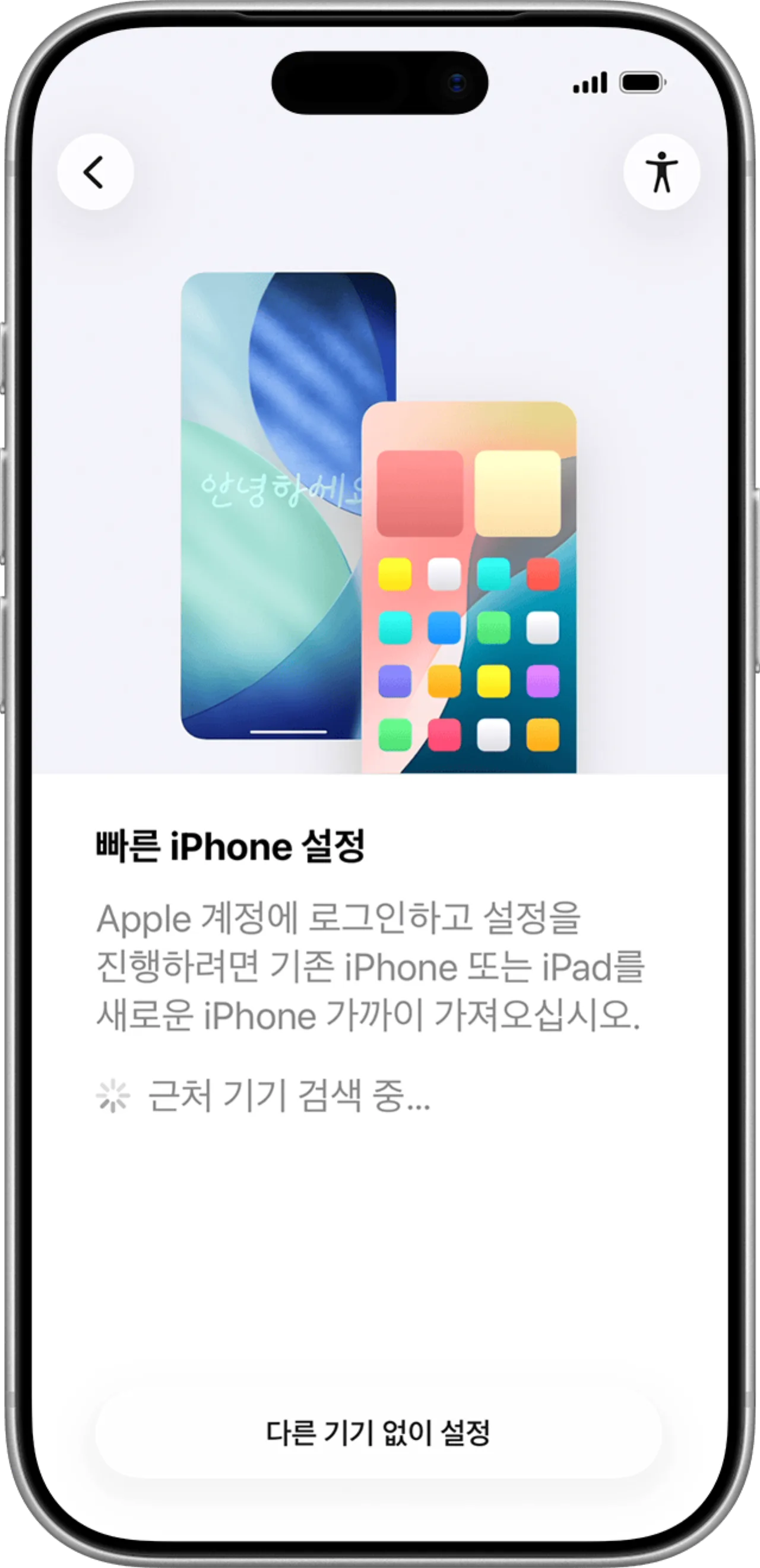 The first setup screen on a new iPhone — Source: Apple
Apple officially describes three routes: Quick Start, in which the devices pass data directly to each other; iCloud restore, in which the new device downloads a backup kept in iCloud; and computer restore, which restores a backup made on a Mac or PC.
| Method | What it needs | When to use it |
|---|---|---|
| Quick Start | Both devices in hand | Most device changes |
| iCloud restore | Backup storage and Wi-Fi | The old device is already returned |
| Computer restore | A Mac or PC and a cable | Large volumes and a slow connection |
Quick Start has been available since iOS 11, and moving data directly between nearby devices requires iOS 17.2 or later on both. iOS 27, released September 14, 2026, supports devices back to the iPhone 11 and the second-generation iPhone SE.
Computer restore uses Finder on a Mac and the Apple Devices app or iTunes on Windows. Choose it only when your connection is slow or the volume to move runs to tens of gigabytes.
Four things to check before you start
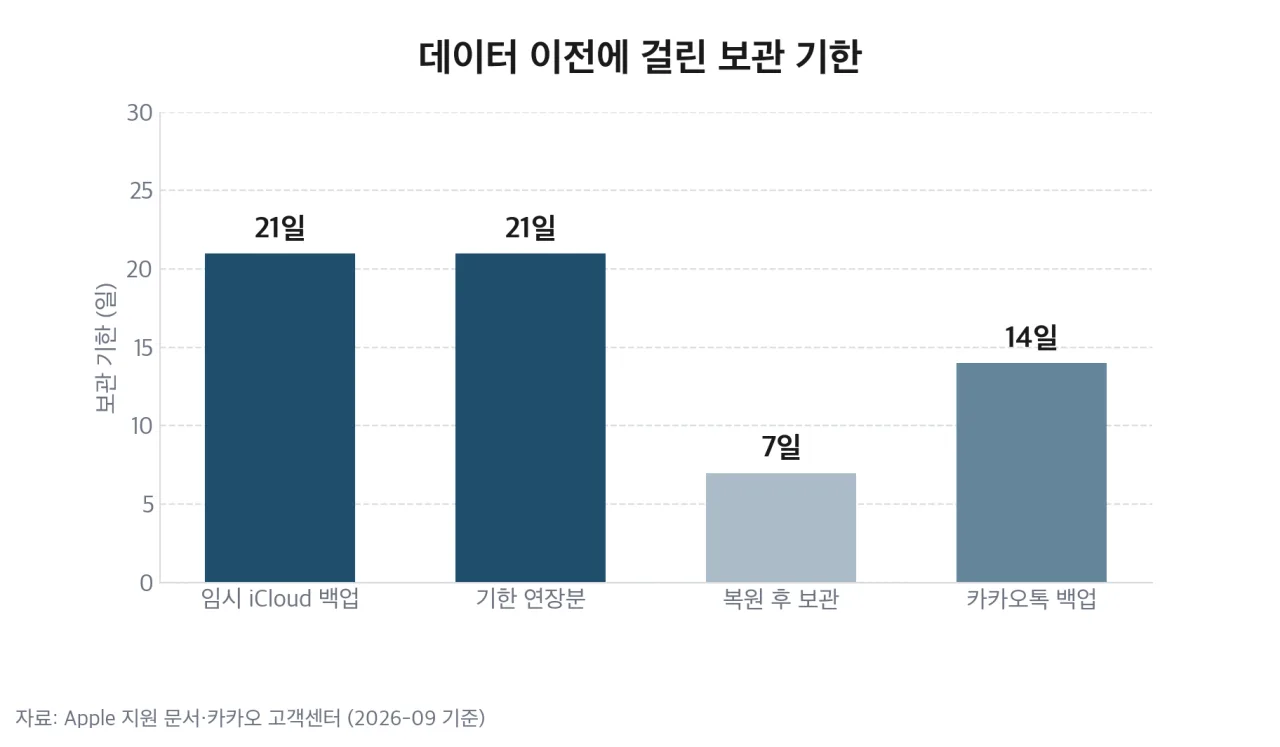 Chart of the retention periods attached to data transfer — Source: self-rendered from Apple Support documents and Kakao’s help center
First, update both devices to the latest iOS. A large version gap can stall a restore midway.
Second, turn on Wi-Fi and Bluetooth on the existing device. Quick Start finds the two devices over Bluetooth and sends data over Wi-Fi, so with either one off the start screen never appears.
Third, plug both devices into power. If a device loses power during the transfer you start over.
Fourth, check your iCloud storage. The free tier is only 5GB, so on a device with many photos the backup is never created in the first place. Apple has an alternative ready for this.
Temporary iCloud storage
If you bought a new device and lack the storage to back up, you get as much iCloud space as the transfer needs, free and temporarily. The route is Settings > General > Transfer or Reset iPhone > Get Started; if iCloud Backup is off, choose to turn on backup for the transfer and follow the instructions.
This temporary backup is kept for 21 days. If the new device’s delivery is delayed, you can tap to keep the backup longer and extend it by another 21 days once, and after you finish restoring to the new device the temporary backup is deleted seven days later. That is why you must not erase the existing device before the restore is done.
Moving with Quick Start
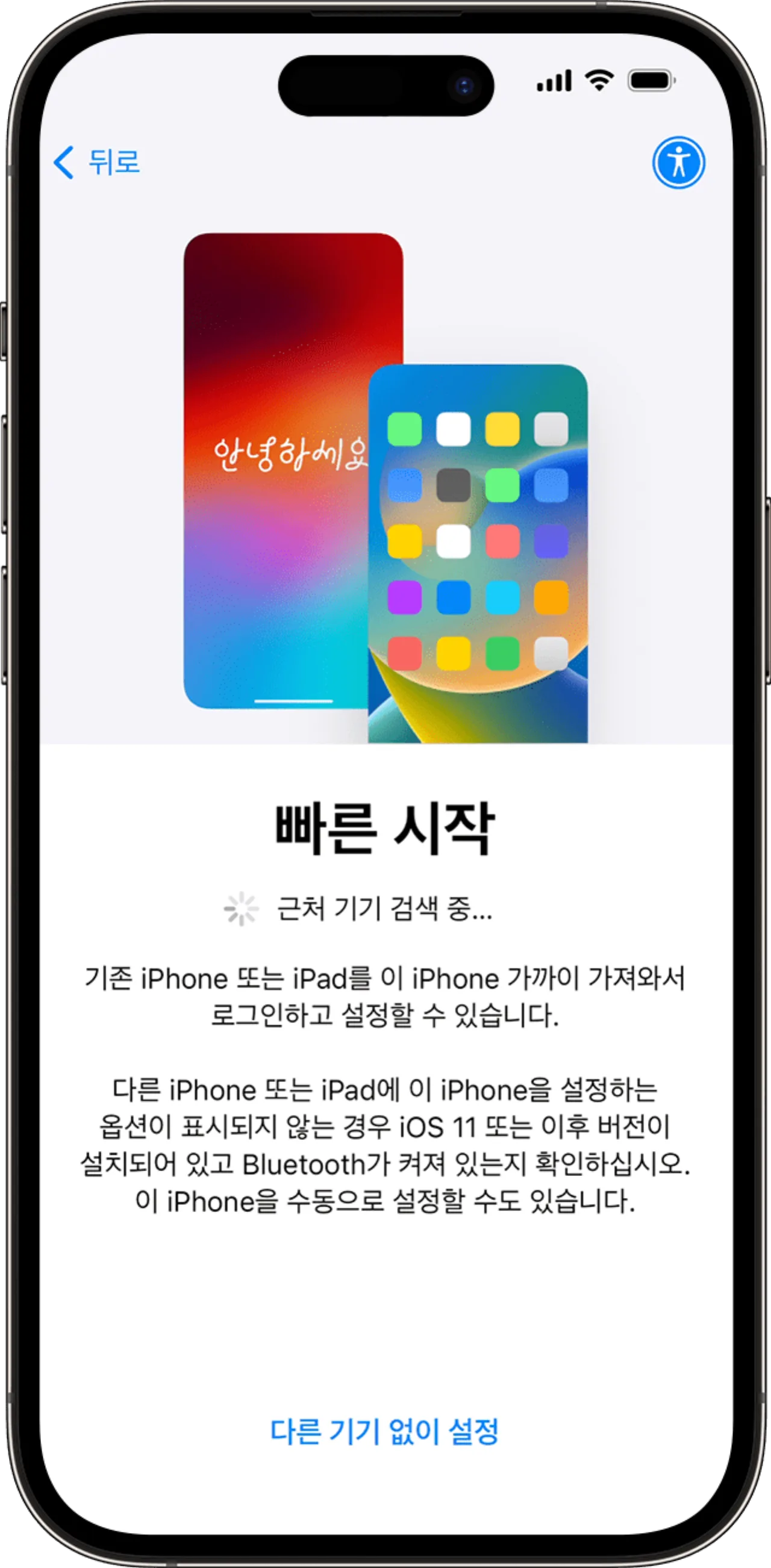 The Quick Start screen on a new device — Source: Apple
① Connect both devices to power and turn on Wi-Fi and Bluetooth on the existing device ② Turn on the new iPhone, set it beside the existing one, and tap Continue when the existing device asks about setting up the new one ③ Point the existing device’s camera at the round animation on the new device ④ Enter the existing device’s passcode on the new device ⑤ Set up Face ID or Touch ID again (biometric data stays on the device and does not transfer) ⑥ Choose a transfer method on the Transfer Your Data screen
Choosing Transfer from iPhone has the two devices pass data directly. Neither is usable until the transfer finishes, but you need no iCloud backup and no data charges.
Choosing Download from iCloud downloads apps and data in the background. You can use the new device right away, but until everything is downloaded photos look blurry and app icons stay blank.
Either way, keep the two devices close together and plugged in until the transfer is done. How long it takes depends on volume and connection.
Faster transfer over a cable
If wireless keeps dropping or the volume is large, connect the two devices directly with a cable. The cable you need depends on the pairing.
| Pairing | Cable needed |
|---|---|
| iPhone 15 or later ↔ iPhone 15 or later | USB-C charge cable |
| iPhone 14 or earlier → iPhone 15 or later | USB-C to Lightning cable |
| iPhone 14 or earlier ↔ iPhone 14 or earlier | Lightning to USB 3 Camera Adapter + Lightning to USB cable |
The last pairing also needs a 12W or higher power adapter plugged into the adapter. Pro models run at USB 3 speeds (up to 10Gbps) while the standard models are limited to USB 2 speeds.
When you no longer have the old device: iCloud restore
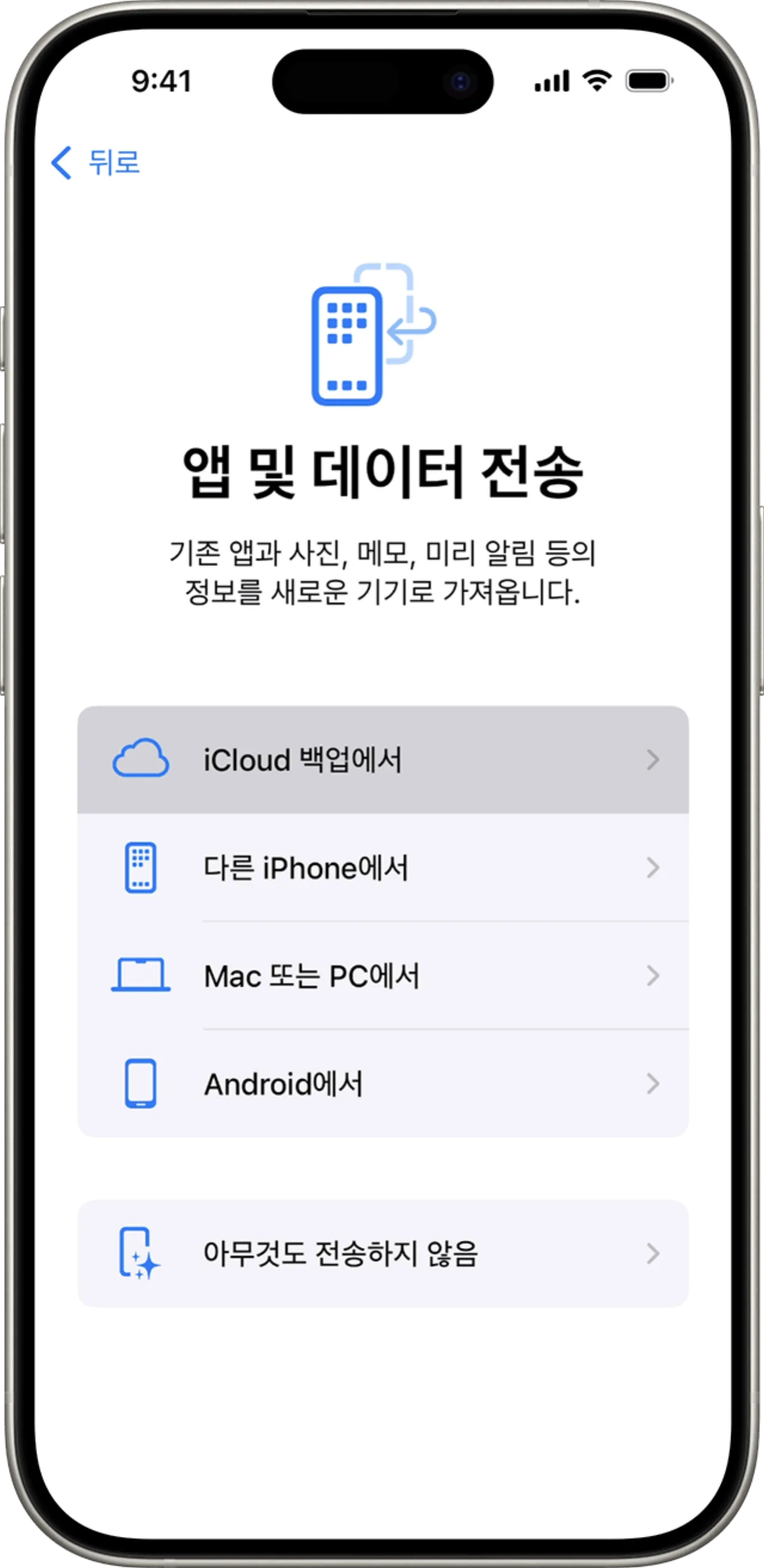 Choosing “Restore from iCloud Backup” during setup — Source: Apple
If you have already returned or lost the existing device, an iCloud backup is the only way to restore.
While the existing device is still in hand, make a current backup with Settings > [your name] > iCloud > iCloud Backup > Back Up Now. On the new device, choose Restore from iCloud Backup on the Apps & Data screen, sign in with your Apple Account, and pick the backup by date and size.
Reaching the Home Screen at the end of setup does not mean the restore is complete. Apps and photos keep downloading in the background afterwards, so keep Wi-Fi and power on for a few days to get back to the original state.
From Android to iPhone
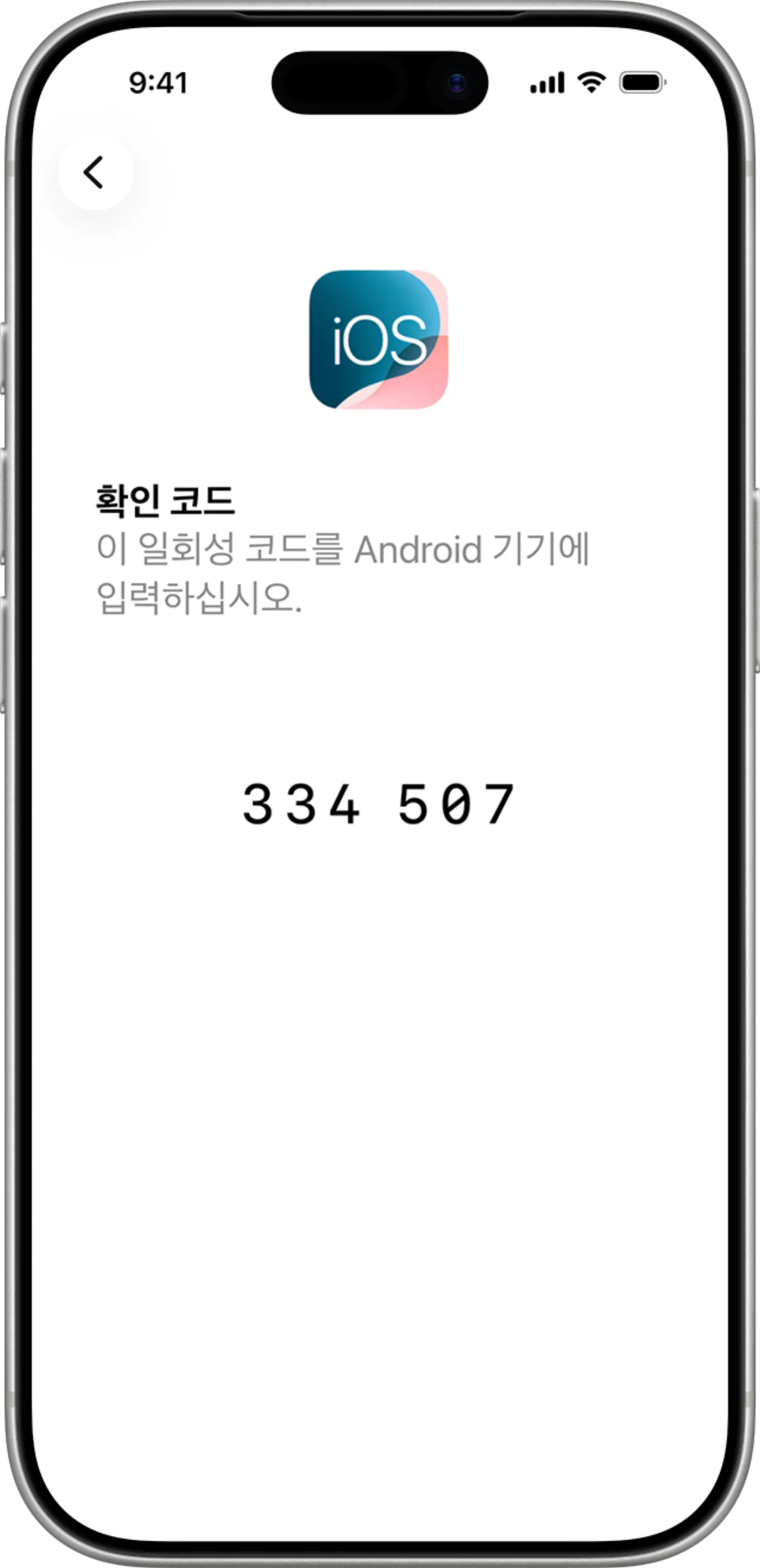 The code screen shown when transferring from Android — Source: Apple
Moving from a Galaxy to an iPhone means installing Apple’s Move to iOS app on the Android side. Choose “Move Data from Android” on the new iPhone’s setup screen, and a code appears; entering that code on the Android device starts the transfer.
What comes across: contacts, message history, SMS, camera photos and videos, photo albums, files and folders, web bookmarks, mail accounts, calendars, voice memos, call history, and accessibility and display settings. WhatsApp messages and media are included, and free apps available in both stores are reinstalled automatically.
What does not come across: music, books, and PDFs. Paid apps have to be bought again in the App Store.
The transfer works over Wi-Fi or over a direct USB-C cable. The cable is faster and less likely to drop midway.
If you have already finished the iPhone’s initial setup, you have to erase the iPhone and set it up again to use this app
Finishing setup on your own as soon as the new iPhone arrives leads to erasing a perfectly good iPhone just to move the Android data.
Items that do not transfer automatically
 Concept image of certificates, lines, and messengers being registered again on the new device — Source: concept image · self-generated with agy
When Quick Start finishes, every app is installed in the same place — what actually differs is the state inside the apps. Many apps used in Korea make you authenticate from scratch when the device changes.
| Item | What to do on the new device |
|---|---|
| KakaoTalk conversations | Back up on the old device and restore within 14 days |
| Banking apps and certificates | Reinstall, then move or reissue certificates |
| Mobile ID | Re-registration required when the device changes |
| eSIM line | Reissue through the carrier’s process |
| Apple Pay cards | Add the cards to Wallet again |
| OTP and authenticator apps | A different transfer process per app |
KakaoTalk conversations
Per Kakao’s official guidance, the free backup is made at KakaoTalk > More > Settings > Backup. The backup password you set there cannot be recovered if lost, and without it there is no restore.
Only text conversations are backed up, so multimedia such as photos and videos, attachments, messages longer than 4,000 characters, Secret Chats, and OpenChats are excluded. Keeping photos as well requires a Talk Drawer subscription.
The restore window is 14 days from the backup, after which the backup data is deleted automatically and cannot be restored. So it is safer to make the backup right before you get the new device.
The eSIM line
An eSIM cannot be pulled out and moved like a SIM chip, so it goes through the carrier’s systems. KT describes iPhone-to-iPhone transfer as an official process: choose Cellular settings > Transfer From Nearby iPhone on the new device and verify your identity; supported devices are iPhone XS or later on iOS 16 or later. The fee is ₩2,750 including VAT, billed later, and transfers are available weekdays and Saturdays from 8 a.m. to 8 p.m.
All three carriers set the eSIM download fee at the same ₩2,750, and it is waived in some circumstances, so it is worth checking your carrier’s guidance in advance.
Do not delete the eSIM on the existing device before issuance finishes on the new one. Delete it first and the line is unusable until you go through the carrier’s reactivation process.
Finance and ID
Joint certificates and financial certificates are stored differently, so their transfer processes differ too. Moving them in advance with the banking app’s certificate copy function, while the existing device is still in hand, makes this far easier. Security cards and smart OTPs mostly have to be registered again on the new device.
Mobile IDs must be re-registered manually when the device changes, as a matter of security policy. Regardless of the operating system, it means verifying your identity again in the app on the new device.
The order for moving data
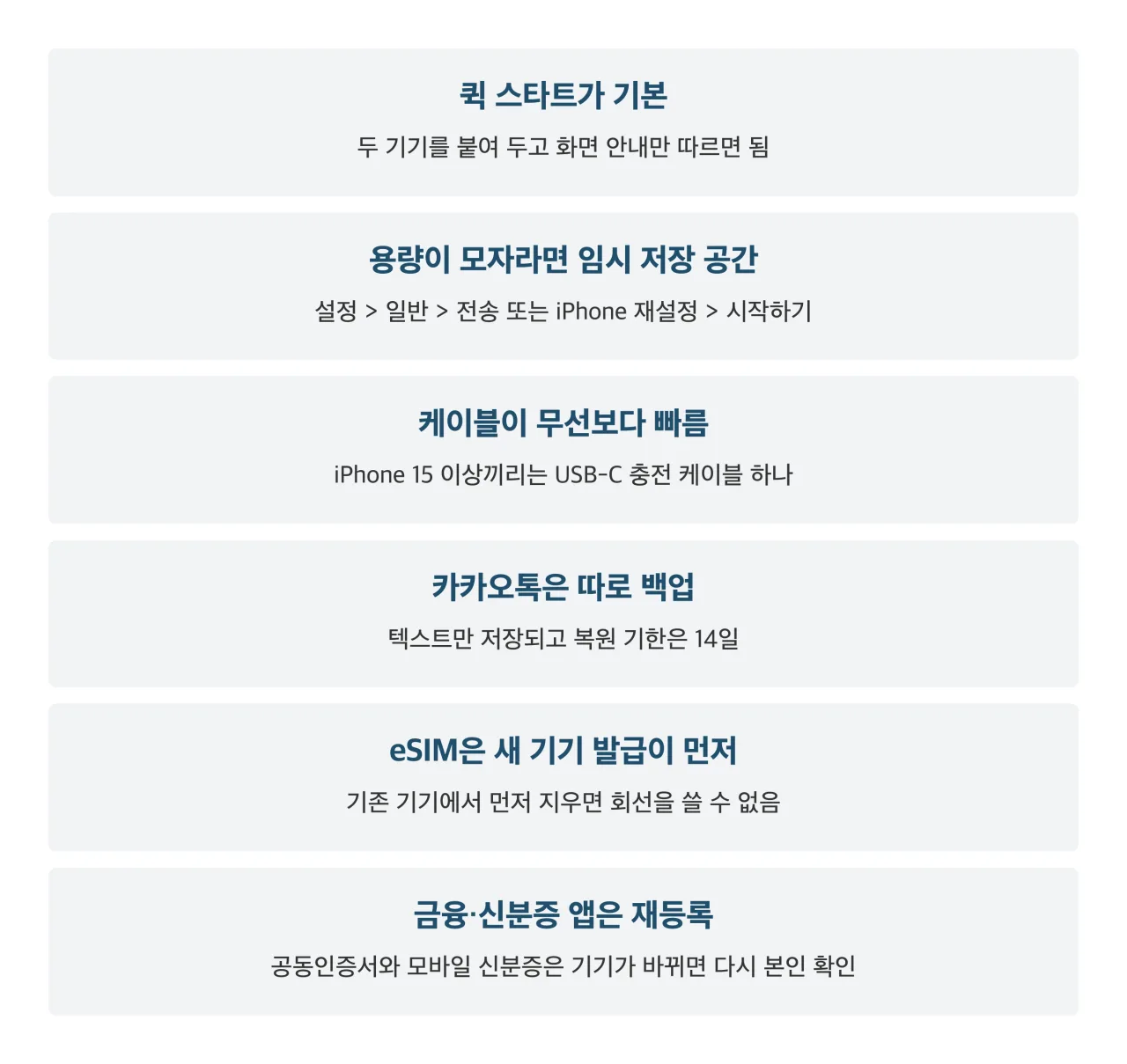 Summary card of the iPhone data transfer order — Source: compiled from this post · self-rendered
Finish the KakaoTalk backup and certificate housekeeping the day before, move the data with Quick Start on the day, then move the eSIM line and re-register the financial apps last — that keeps the steps from tangling. Erasing the old device comes after you have confirmed everything works on the new one.
Sources
- [Apple Support] Transfer data from a previous iOS or iPadOS device to a new iPhone or iPad (the three methods)
- [Apple Support] Use Quick Start to transfer data to a new iPhone or iPad (procedure and requirements)
- [Apple Support] Use iCloud to transfer data from a previous device to a new one (the iOS 17.2 requirement, restore procedure)
- [Apple Support] Transfer data to a new iPhone or iPad with a wired connection (cable pairings by model)
- [Apple Support] Use temporary iCloud storage when you buy a new iPhone or iPad (the 21-day and 7-day limits)
- [Apple Support] Move from Android to iPhone or iPad (what the Move to iOS app transfers)
- [Apple Newsroom] Major updates for Apple’s software platforms are now available (iOS 27 release date and supported devices)
- [Kakao Help Center] Backing up conversations (14-day restore window, what is excluded)
- [KT Direct Shop] eSIM transfer guide (Transfer From Nearby iPhone, ₩2,750 fee, hours)
- [Edaily] The three carriers’ ₩2,750 eSIM fee (a common fee across all three)