You erase an iPhone when you sell it used, send it in for repair, or hand it back on a trade-in. It looks like one tap in Settings, but get the order wrong and the device goes out with Activation Lock still set.
The person receiving it is then asked for the previous owner’s Apple Account password, and a trade-in inspection classifies it as lost or stolen and rejects it. That is why unlinking the account comes before erasing the data.
 Concept image of an account and data separating out of an iPhone — Source: concept image · self-generated with agy
What to finish before erasing
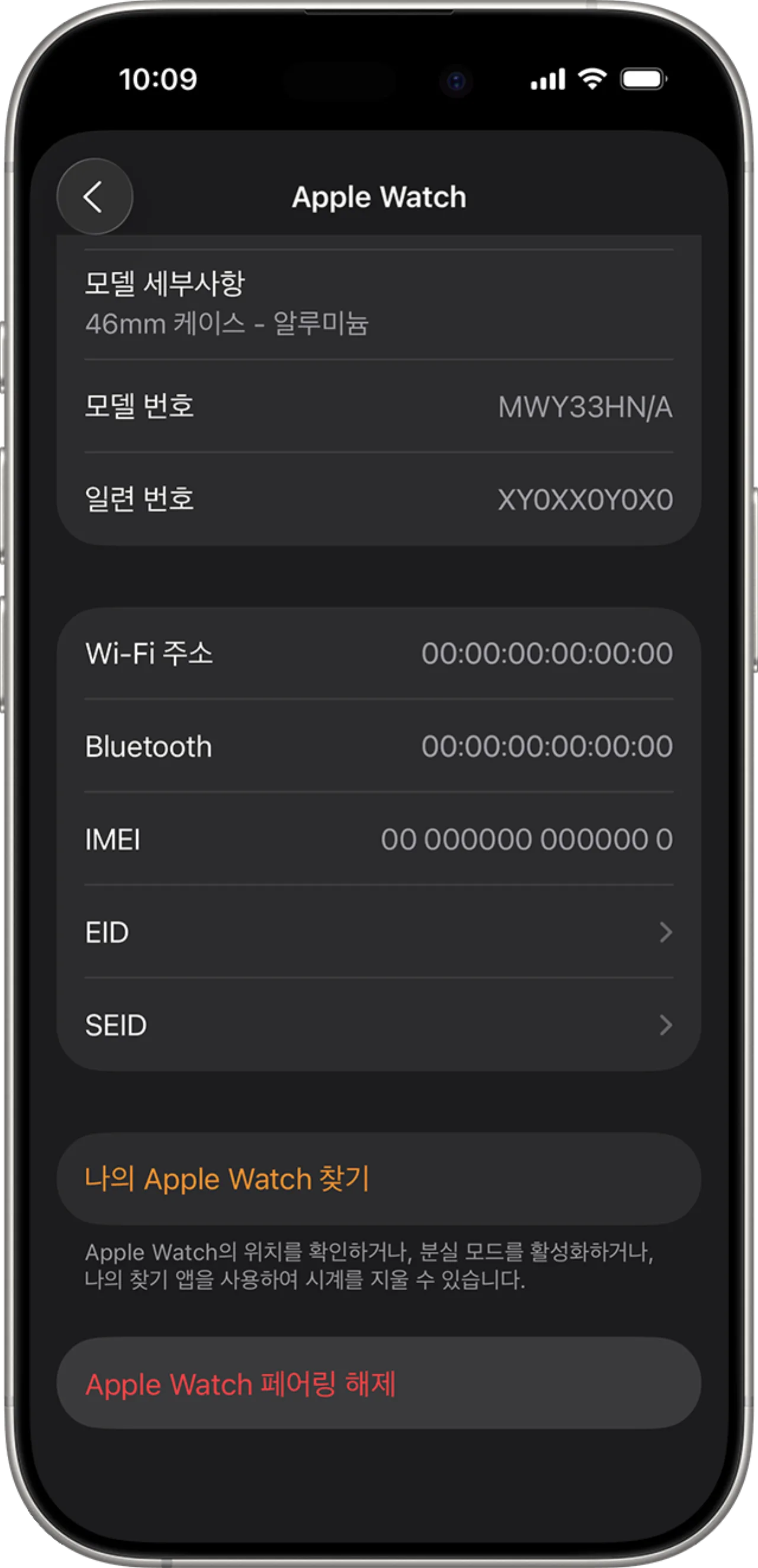 Unpairing an Apple Watch in the Watch app — Source: Apple
In Apple’s order, erasing comes last. Skip the preparation and there is no good way back once it is erased.
| Order | What to do | If you skip it |
|---|---|---|
| 1 | Back up and transfer data | Unrecoverable |
| 2 | Check parts and service history | Reduced trade-in value |
| 3 | Unpair the Apple Watch | Lock remains on the Apple Watch |
| 4 | Cancel or transfer AppleCare | Coverage goes to someone else’s device |
| 5 | Sign out of the Apple Account | Activation Lock remains |
| 6 | Remove Wallet cards and passes | Payment methods exposed |
| 7 | Remove trusted devices | Verification codes go to the old phone |
If a trade-in or a used sale is coming, look first at the parts and service history in Settings > General > About. If the screen or battery was replaced through third-party repair, a note such as “Repair completed” remains, and that mark is grounds for a reduction or rejection at inspection. If you plan to replace them with genuine parts, it is better to handle that before erasing.
If you use an Apple Watch, unpair it before erasing the iPhone. Unpairing returns the Apple Watch to factory settings and removes its Activation Lock at the same time.
Sign out of the account at Settings > [your name] > Sign Out at the bottom. You are offered a choice between erasing the data from the device and signing out while keeping it; for a device you are handing over, take the former.
The latter keeps iCloud data on the device, so it is for a device you will keep using — changing only the account, for instance. Choosing it on a device you hand over sends contacts and calendars along with it.
If you are moving to a phone that is not an iPhone, you also have to deregister iMessage. Otherwise texts people send you go out as iMessages and never reach the new phone.
The erase procedure
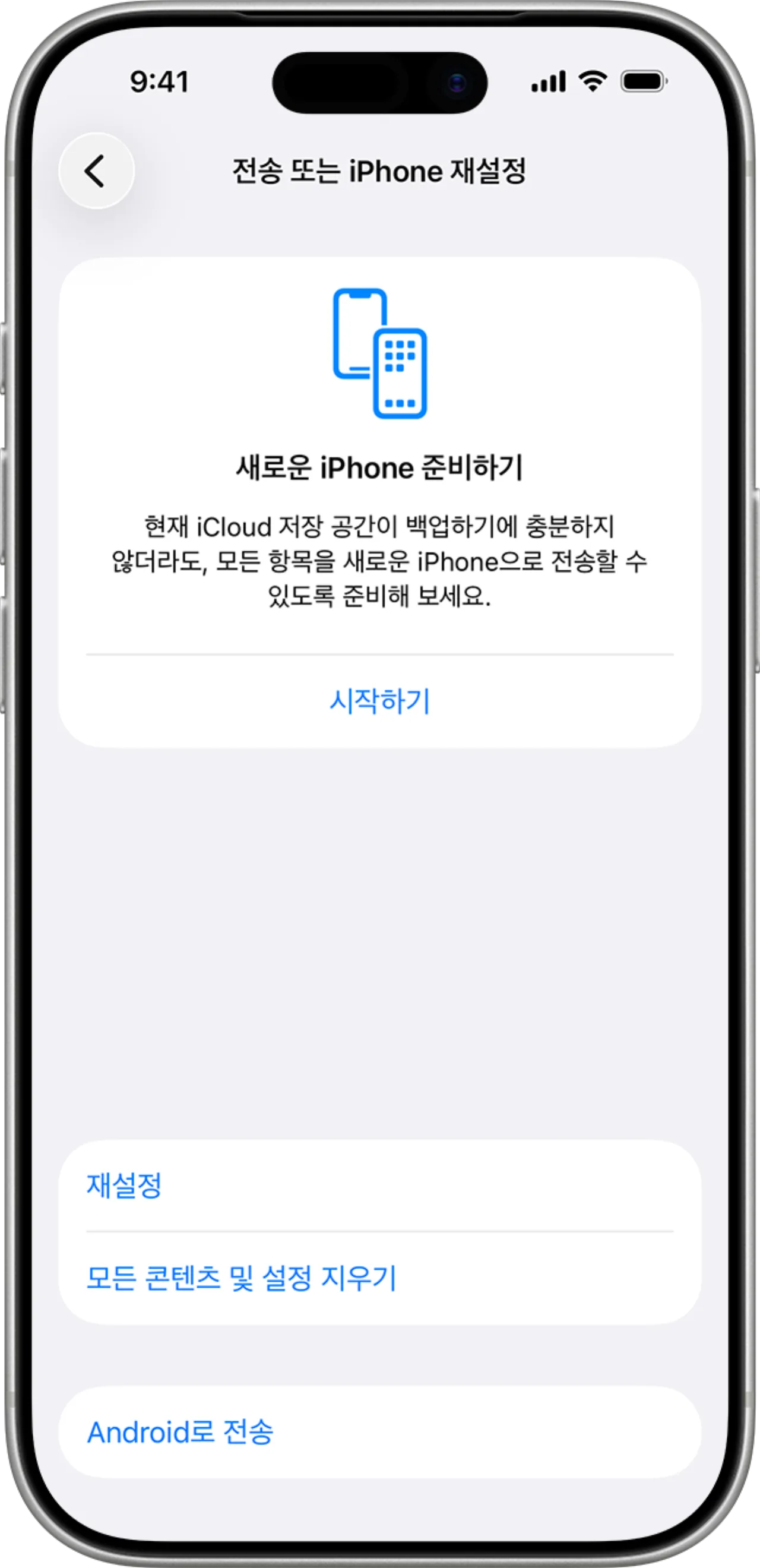 The “Erase All Content and Settings” menu in Settings — Source: Apple
Once the preparation is done, the erase itself takes a few minutes.
① Go to Settings > General > Transfer or Reset iPhone > Erase All Content and Settings ② Tap Continue ③ Choose whether to keep or delete the eSIM (deleting means reactivating with your carrier) ④ Enter the device passcode ⑤ If a backup is running, wait for it to finish ⑥ Enter the Apple Account password and tap the confirm mark on the keyboard ⑦ After the restart, check for the “Hello” screen
At step ⑥ Find My and Activation Lock are turned off together, so a normal erase leaves no lock behind.
When you do not need to erase everything
If you came looking for a reset to fix a problem rather than to hand the device over, look first at the Reset item in the same menu. It holds partial resets of its own.
| Symptom | What to choose |
|---|---|
| Wi-Fi or cellular connection problems | Reset Network Settings |
| Settings tangled and behavior odd | Reset All Settings |
| Home Screen layout scrambled | Reset Home Screen Layout |
| Autocorrect suggesting the wrong words | Reset Keyboard Dictionary |
These four do not delete photos, apps, or messages. Resetting network settings erases saved Wi-Fi passwords, so check those in advance; the rest delete almost no data.
Find My and Activation Lock
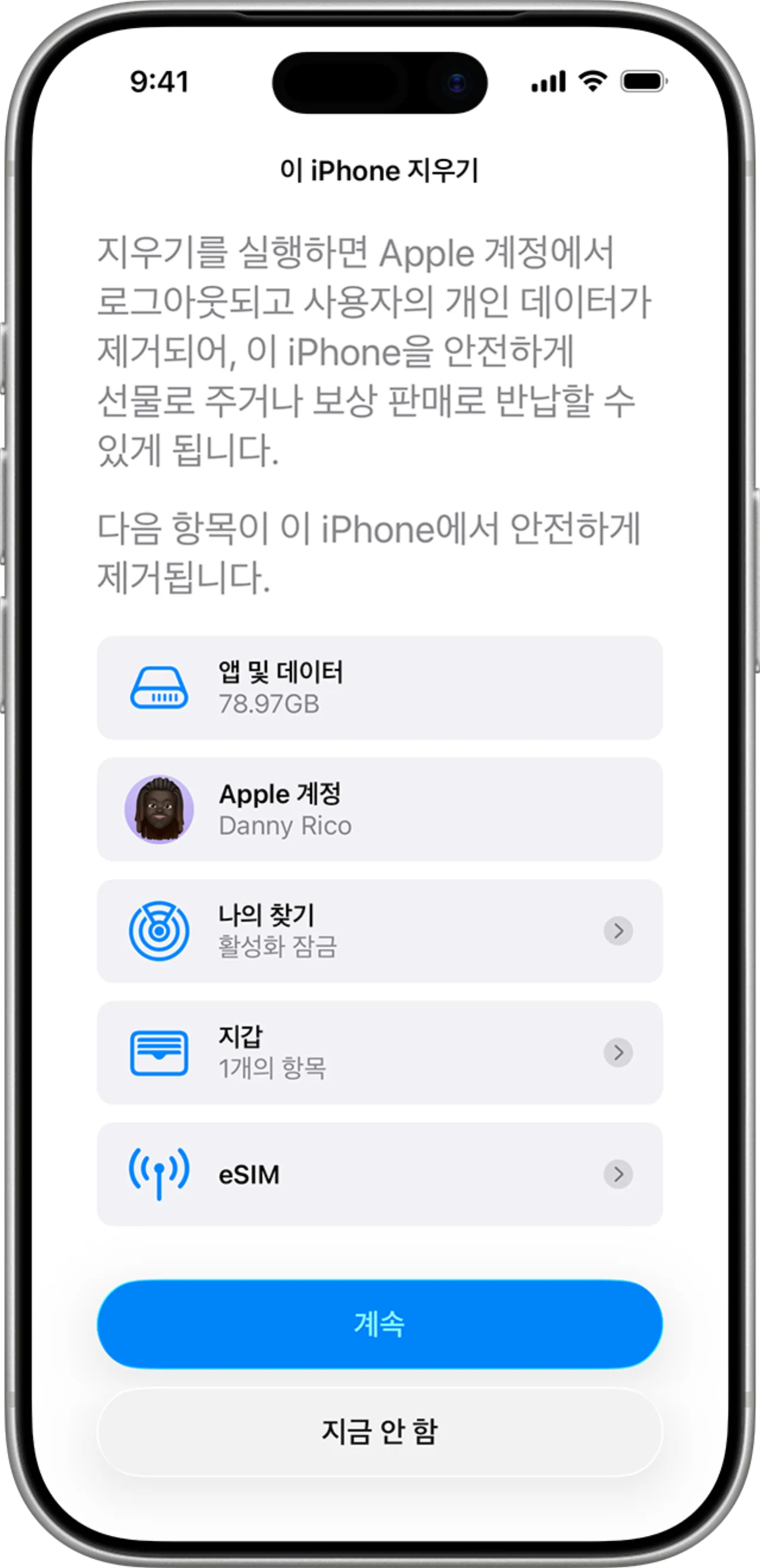 Confirming the erase by entering the Apple Account password — Source: Apple
Activation Lock is an anti-theft measure that is set the moment you turn on Find My. Even after the device is erased, if it is still tied to an Apple Account it asks for that account’s ID and password when turned back on.
Most used-device disputes start here. When a seller force-erases without signing out, the buyer is left with a device that cannot get past the lock screen.
Dealing with a locked device
If you can reach the previous owner, the lock can be cleared right away. The owner goes into Find Devices in iCloud and removes the device from their account, which releases Activation Lock remotely, with the device nowhere nearby.
Otherwise the only route is to contact Apple Support with formal proof of purchase such as a receipt and the device’s serial number and IMEI; Apple does not recommend third-party bypass tools.
Trade-in inspections use the same standard, so a device still carrying Activation Lock is classified as lost or stolen and the trade-in is refused.
When buying used, the surest thing is to watch it reach the Hello screen yourself, in front of the seller
Run the initial setup all the way to the Home Screen, and check Settings > [your name] for any remaining seller account. If the screen moves on but an account is still linked, it locks again at the next erase. If the seller cannot handle it on the spot, it is better to put the deal off.
The state of the data after erasing
 Concept image of data becoming unreadable once the encryption key is gone — Source: concept image · self-generated with agy
It can feel strange that wiping hundreds of gigabytes takes only a few minutes. That is because the files are not overwritten one by one.
An iPhone’s storage is used encrypted from end to end. What the erase removes is the encryption key, and the moment it is gone the remaining bits are random data that cannot be decrypted. Even if data physically remains somewhere on the storage, there is no way to read it.
So there is no need to go to a recovery firm — and equally, there is no way back if you erased by mistake.
When you have forgotten the passcode or do not have the device
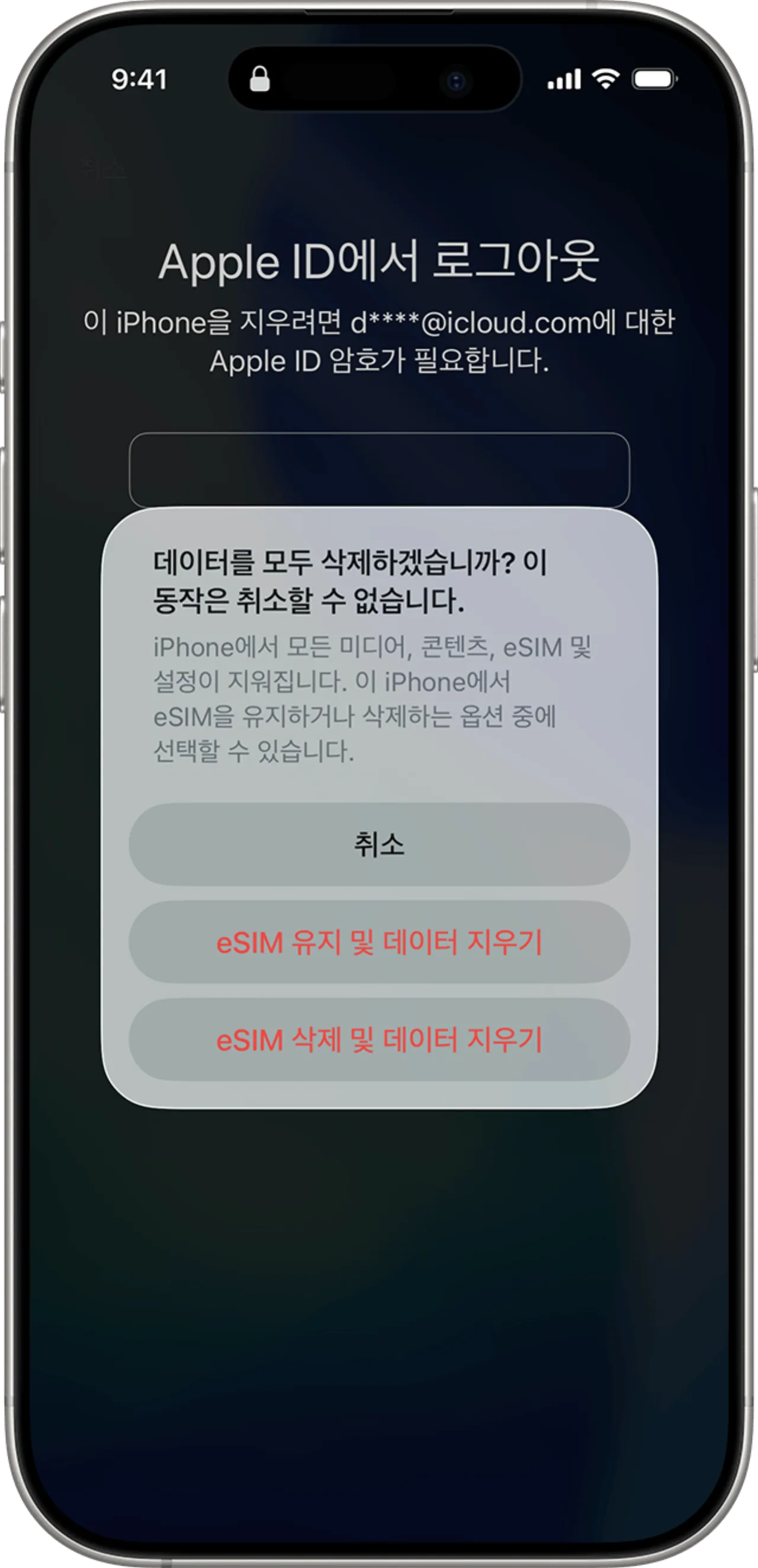 The device reset screen shown when you have forgotten the passcode — Source: Apple
Even if a forgotten passcode keeps you out of Settings, you can erase without a computer.
Entering the wrong passcode repeatedly on the lock screen brings up the “iPhone Unavailable” screen; tap Forgot Passcode?, choose Start iPhone Reset on the security lockout screen, and enter the Apple Account password to erase the device. Two conditions make that button appear: a cellular or Wi-Fi connection, and Find My turned on.
If you just changed the passcode and cannot recall the new one, you do not need to erase. Since iOS 17 you can unlock with the previous passcode for 72 hours after changing it.
If you do not have the device at all, turn on Lost Mode in Find Devices in iCloud to track its location, then erase it remotely once you give up on getting it back. A remote erase alone is not enough — after erasing you have to remove the device from your account for Activation Lock to come off with it.
Extra items for Korea
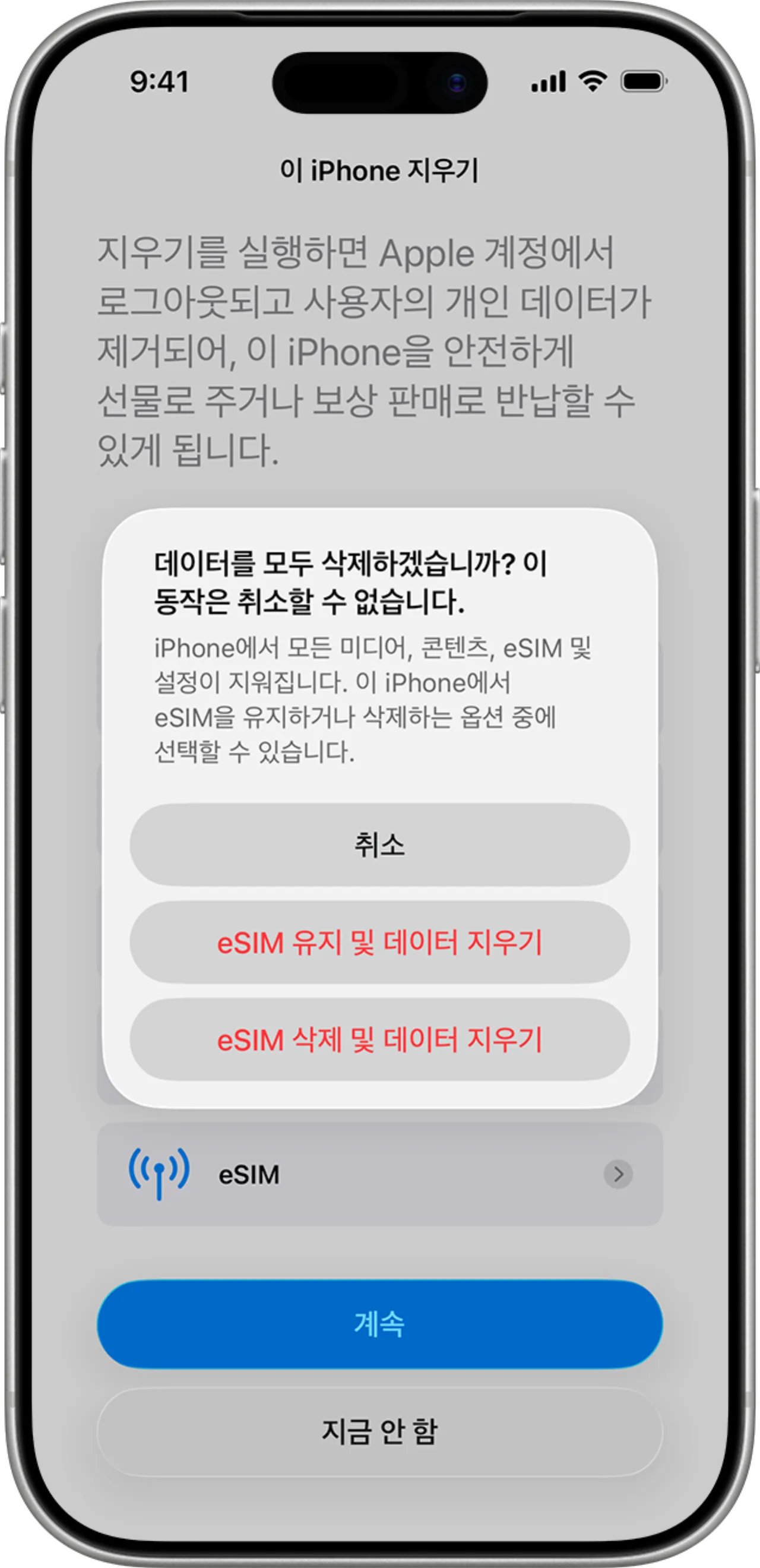 Choosing whether to keep or delete the eSIM during the erase — Source: Apple
| Item | Before erasing |
|---|---|
| eSIM | Delete after moving the line to the new device |
| Mobile payments | Unlink cards and accounts |
| Mobile ID | Discard in the app, re-register on the new device |
| Returning to a carrier | Confirm Activation Lock is off |
The erase screen asks whether to keep or delete the eSIM. If you have already moved the line to the new device, delete; if not, keeping it is safer. Getting it back after deletion means going through the carrier’s process, and the three carriers charge an eSIM download fee of ₩2,750 including VAT.
Mobile payment apps and mobile IDs are registered to and run on the device, so it is cleaner to unlink or discard them in each app before erasing. After the erase you cannot get into the apps and end up going through customer service.
The order, by situation
 Summary card of the iPhone erase order by situation — Source: compiled from this post · self-rendered
Unlink the account before erasing the data, and after erasing, check that the lock really came off. For a used sale, do that check together, at the handover.
Sources
- [Apple Support] Reset an iPhone, iPad, or iPod touch to factory settings (the erase procedure)
- [Apple Support] What to do before you sell, give away, or trade in an iPhone or iPad (preparation order)
- [Apple Support] Reset your device without a computer if you forgot the passcode (conditions for the lock screen reset)
- [Apple Support] If you forget the new passcode, unlock with the previous one within 72 hours
- [Apple iCloud User Guide] Erase a device with Find My iPhone (remote erase)
- [Apple iCloud User Guide] Remove a device from Find My iPhone (releasing Activation Lock)
- [Apple Support] Unpair and erase an Apple Watch (unpairing and unlocking)
- [Apple] Apple Trade In Korea (Korean trade-in conditions)
- [KT Direct Shop] eSIM transfer guide (eSIM reissue fee)